
Blog / Running Your Business
Google Business Profile for Contractors: Setup Guide
Google Business Profile for contractors: how to set up a service-area profile, pick categories, add photos and follow Google's rules to show up locally.
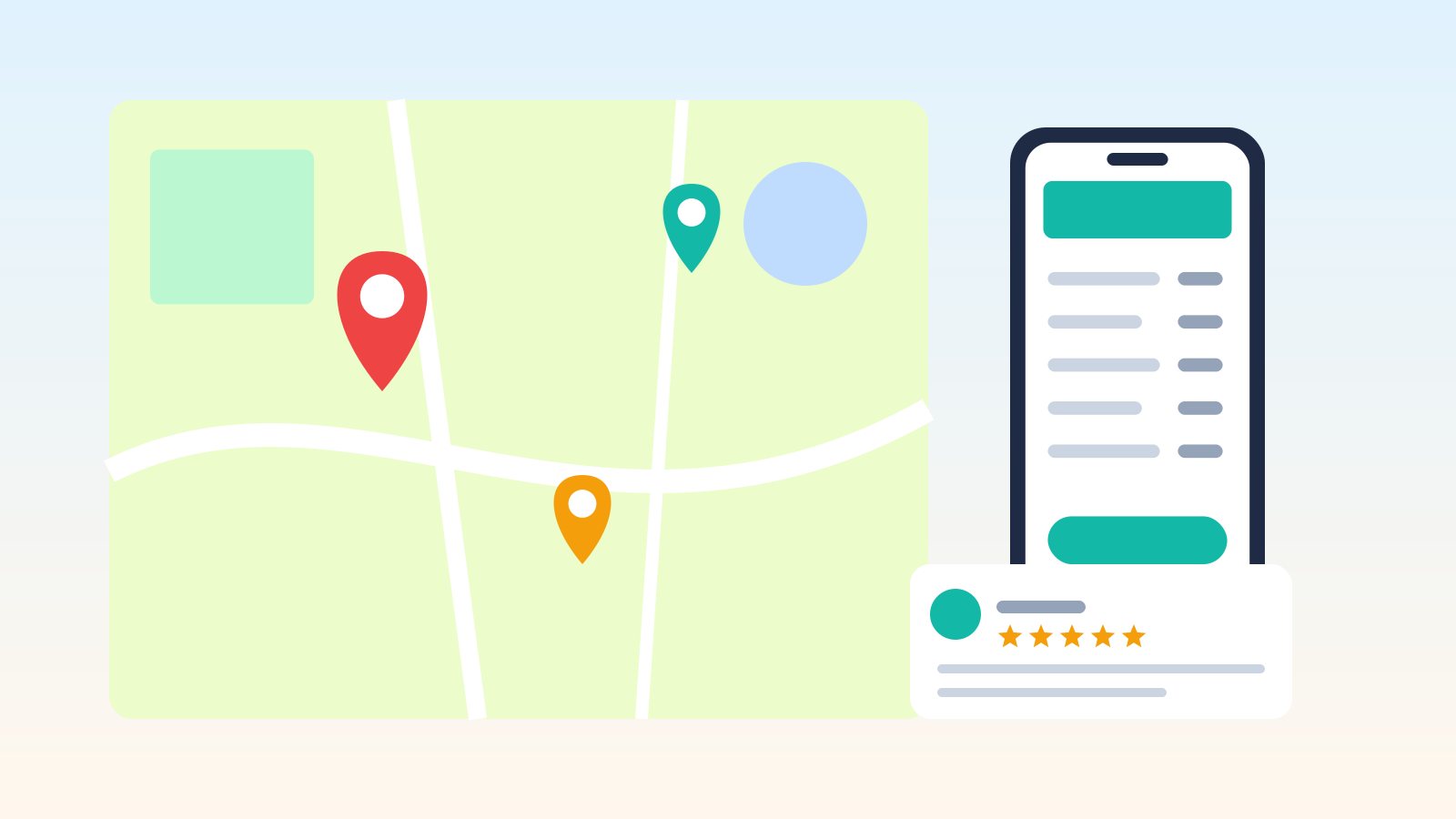
When a homeowner searches "electrician near me" or "house cleaning [city]," the first results they see are usually the map listings, not websites. Those listings come from Google Business Profile. For a local trade business, a complete, accurate profile is one of the most valuable free marketing tools available.
This guide walks contractors and home service businesses through setting up a Google Business Profile the right way: choosing the correct business type, setting your service area, avoiding the mistakes that get profiles suspended, and keeping it active so it keeps bringing in calls.
What a Google Business Profile does for a contractor
Your profile can show your business name, phone number, service area, hours, reviews, photos and services directly in Google Search and Maps. Customers can call you or visit your website with one tap. For many small trade businesses, it brings in more calls than their website does.
It's free to create and manage. Google also offers paid Local Services Ads for service-area businesses, but you don't need ads to have a profile (Google Business Profile Help).
Step 1: Pick the right business type
Google treats businesses in three ways, and choosing correctly matters:
| Business type | What it means | Typical trades |
|---|---|---|
| Storefront | Customers visit your address, which has permanent signage | Supply counter, showroom |
| Service-area business | You go to customers and don't serve them at your address | Plumbers, electricians, cleaners, landscapers, handymen |
| Hybrid | You serve customers at a staffed location and travel to them | A shop with a showroom that also does installs |
Most contractors are service-area businesses. Google's guidelines say that if you serve customers at their locations and don't serve them at your business address, you should hide your address. Google gives the example of a plumber who runs the business from home: clear the address from the profile (Google guidelines).
Step 2: Use your real business name
Your profile name should match the name customers see on your truck, invoices, website and signage. Google's guidelines prohibit adding extra keywords, taglines, locations or phone numbers to the name, and doing so can get the profile suspended (Google guidelines).
- Acceptable: "Rivera Plumbing"
- Not acceptable: "Rivera Plumbing – Best 24/7 Emergency Plumber Dallas"
If your registered business name really does include a word like "Plumbing" or "Electric," that's fine. The rule is to match the real-world name, not to stuff it.
Step 3: Set your service area
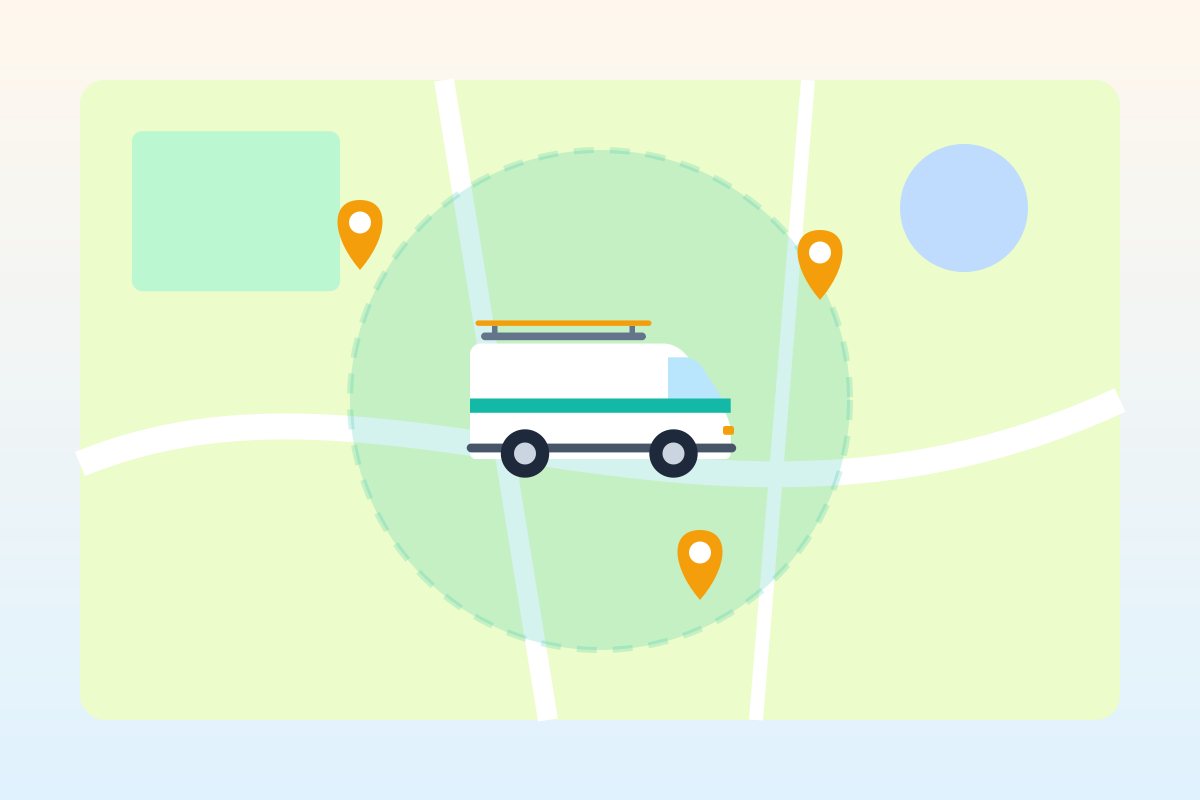
Service-area businesses list the places they serve instead of a street address. According to Google's help center:
- You can set up to 20 service areas by city, ZIP code or other area.
- You can't set a radius around your location.
- Your overall area generally shouldn't extend more than about two hours' drive from where your business is based.
Be honest and specific. Listing a city you'd never actually drive to doesn't help, and it can frustrate customers who call expecting service (Google: Manage your service areas).
Step 4: Choose categories carefully
Pick the primary category that best answers "this business is a ___": for example, Plumber, Electrician, HVAC contractor, House cleaning service, Landscaper or Painter. Add a few secondary categories only if they describe your core business. Google recommends using as few categories as possible and not using them as keywords (Google guidelines).
Step 5: Verify your business
Google will ask you to verify that you own or manage the business before your profile goes fully live. The available verification methods vary by business and can change over time, so follow the steps Google shows you. Keep the details you enter consistent with your real-world business so verification goes smoothly.
Step 6: Complete every section
A sparse profile looks abandoned. Fill in:
- Phone number: a number you control and answer, ideally a local number
- Website: your own site, not a page that redirects elsewhere
- Hours: the hours customers can actually reach you; Google allows special hours for holidays and seasonal changes
- Services: list the specific jobs you do, like water heater installation, panel upgrades, deep cleaning or lawn aeration
- Description: a plain explanation of what you do, where and for whom. Google's guidelines don't allow links or sales promotions in this field.
- Photos: real photos of your truck, team (with permission) and finished work. Skip stock images.
Example: a contractor business description
Here's a fictional example of a description that follows Google's rules: specific, honest, no links and no sales pitch.
Rivera Plumbing is a family-owned, licensed plumbing company serving homeowners and small businesses in north Dallas County since 2014. We repair leaks, clear drains, install and replace water heaters, and handle repipes and fixture upgrades. Every job gets an upfront written quote, and we clean up before we leave.
Notice what it does: it says what the business does, where and for whom, and what makes it different. It doesn't list prices, coupons or a URL, and it doesn't repeat "plumber" ten times.
Step 7: Build and respond to reviews
Reviews influence both how customers judge you and how your profile performs. Ask every customer for an honest review and send them your direct review link. Reply to every review, thanking happy customers and responding calmly and professionally to criticism.
Don't offer discounts or freebies for reviews, and don't ask only your happiest customers. Google's content policy prohibits incentives for reviews and selectively soliciting positive reviews (Google Maps content policy). The FTC's rule on consumer reviews also bans buying fake reviews and paying for reviews conditioned on a positive or negative sentiment (FTC).
Step 8: Keep it active
A profile that's updated regularly signals an active business:
- Add new job photos every few weeks.
- Update hours for holidays and slow seasons.
- Answer questions customers post.
- Post occasional updates about seasonal services.
- Check your listing for edits suggested by the public and correct anything inaccurate.
Common mistakes that get contractor profiles suspended
- Adding keywords or city names to the business name
- Showing a home address when you don't serve customers there
- Using a virtual office or P.O. box as your address
- Creating multiple profiles for the same business to cover more cities
- Listing a phone number that forwards to a lead-generation service rather than your business
If your profile is suspended, fix the issue first, then follow Google's reinstatement process.
Make the call count
Your profile gets the phone ringing. What happens next decides whether you get the job: a fast reply, a clear quote and, after the work, a professional invoice. With SnipInvoice, you describe a job out loud or type it, check the draft, and share a quote or invoice from your phone, so the customer who found you on Google gets paperwork that matches the reviews.
FAQ
Should a contractor show their address on Google?
If you don't serve customers at your address, Google's guidelines say to hide it and set a service area instead. Show an address only if it's a staffed location with signage where customers can visit during your listed hours.
How many service areas can I add?
Google allows up to 20 service areas, set by city, ZIP code or other area. Your overall area generally shouldn't extend more than about two hours' drive from your base.
Can I put keywords like "best plumber" in my business name?
No. Your name should match your real-world business name. Extra keywords, taglines or locations can lead to suspension.
Is a Google Business Profile free?
Yes. Creating and managing a profile is free. Local Services Ads are a separate, paid option.
Turn profile views into paid jobs. SnipInvoice is launching soon on iOS and Android. See how it works.